Troubleshooting
How to fix IPTV buffering: 12 checks in order
How to fix IPTV buffering: work through twelve checks in order, from Wi-Fi and Ethernet to player cache, DNS and peak-time congestion.
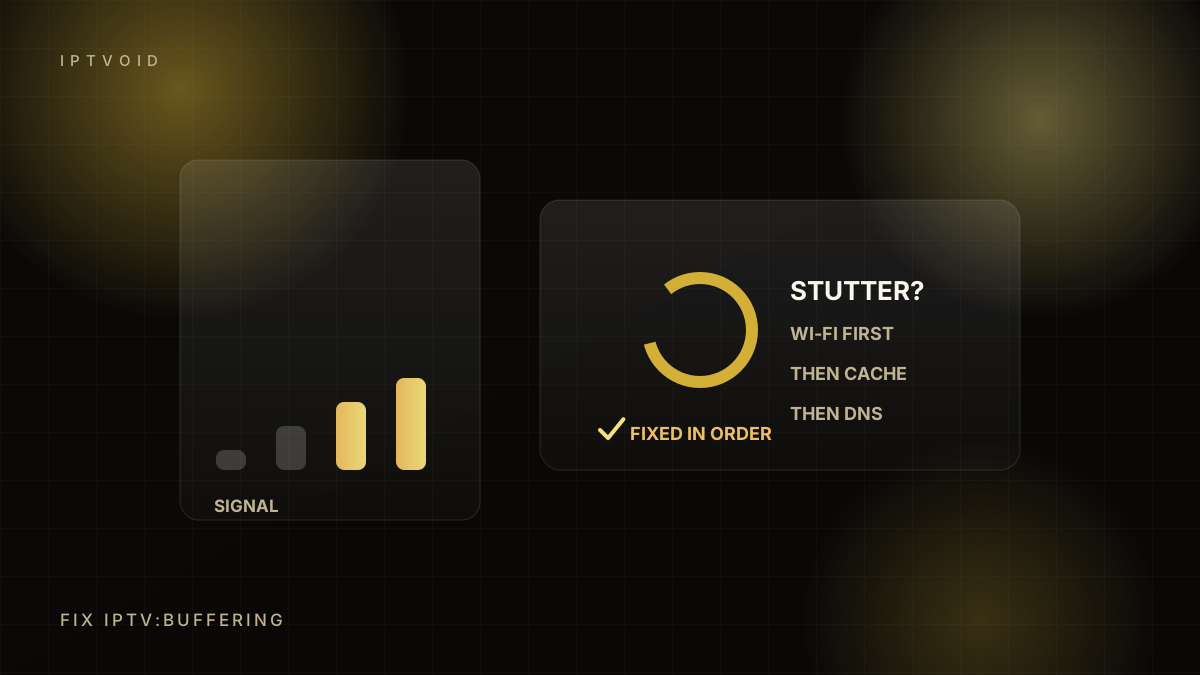
In short: fixing IPTV buffering
Fix IPTV buffering by working from your network outward: test speed and packet loss, try Ethernet, switch to 5 GHz, restart the router and device, clear the player cache, lower stream quality, then contact the provider with evidence. Most buffering is local Wi-Fi or device load, not the service. IPTV buffering is usually a local problem before it is a provider problem. This guide works through IPTV buffering in order: Wi-Fi, Ethernet, player cache, DNS, then peak-time congestion.
Before you change anything
Buffering has four possible sources: your connection, your Wi-Fi, your device or the provider. Changing five settings at once hides which one mattered.
Work through these checks in order. Stop when the problem disappears. Write down what you changed.
1. Run a real speed test
Use a speed test on the same device, at the same time of day, on the same network. Note three numbers:
- Download speed
- Upload speed
- Ping
For HD, you want at least 15 Mbps stable. For 4K, 30 Mbps or more. Ping above 100 ms to a nearby server suggests a congested or distant route.
2. Check packet loss and jitter
Speed alone is not enough. Packet loss causes stalls even on a fast line. Some speed tests report loss and jitter; a router's status page may show errors.
If loss is above 1–2%, the problem is the connection, not the player.
3. Try Ethernet
Connect the device directly to the router with a cable. If buffering stops, Wi-Fi was the cause. If it continues, the problem is upstream or device-related.
An Ethernet adapter for a Fire TV Stick or a USB-C adapter for a laptop is a cheap diagnostic tool.
4. Switch to 5 GHz
2.4 GHz Wi-Fi is crowded in apartments and passes through walls poorly. Switch the device to the 5 GHz band if the router broadcasts both.
5 GHz has less range but more capacity. For a TV in the same room as the router, it is usually the better choice.
5. Restart the router and the device
Power-cycle both. Wait 30 seconds before turning the router back on. This clears DHCP leases, stale routes and memory leaks.
It sounds trivial. It fixes a surprising number of problems.
6. Check device load
Close background apps. On a Fire TV Stick, uninstall apps you do not use. On Android TV, check storage and memory. A device that is updating apps while you stream will stutter.
7. Clear the player cache
Old guide data and thumbnails can slow a player. Clear the cache in the app settings, then reload the guide. You will lose favourites only if you clear app data, not cache.
8. Lower the stream quality
Try the HD feed instead of 4K, or a lower-bitrate variant if the player offers one. If HD is stable and 4K is not, the bottleneck is bandwidth or decoding.
9. Test at a different time
If buffering only happens between 20:00 and 23:00, the cause is congestion: your network, your ISP or the provider at peak. Test at 11:00 to establish a baseline.
10. Try a second player
Install a different player and load the same login. If one app stutters and another does not, the app is the problem. If both stutter, the source or network is.
11. Change DNS
Switching to a public DNS resolver can improve name resolution and, sometimes, routing. It is not a cure for a congested line, but it is quick to test.
12. Contact the provider with evidence
Send:
- The channel name and time
- Your device and player
- Speed test result
- Whether Ethernet made a difference
- A screenshot or short video of the problem
"Channel X buffers every 30 seconds at 21:00 on Ethernet, HD feed, Fire TV Stick 4K Max" is actionable. "It does not work" is not.
What not to do
- Do not buy a new TV before testing Ethernet.
- Do not install a "booster" app from an unknown source.
- Do not disable your firewall.
- Do not change ten settings at once.
- Do not assume the provider is at fault before testing your own network.
A quick decision table
| Symptom | Most likely cause | First action |
|---|---|---|
| Buffers only in one room | Wi-Fi signal | Try Ethernet or 5 GHz |
| Buffers on every device | Internet or provider | Speed and packet loss test |
| One channel only | Source feed | Try another channel, report it |
| Stutters but audio is fine | Device decoding | Lower quality, close apps |
| Works at midday, fails at night | Congestion | Test wired, contact ISP |
| Starts fine, degrades | Cache or memory | Clear cache, restart |
When it is the provider
If Ethernet, a second player and an off-peak test all fail, the provider or the source feed is likely responsible. Report it with evidence and ask whether the channel has an alternative feed. A provider that tracks the report is doing its job.
Frequently asked questions
Why does IPTV buffer only in the evening?
Evening buffering usually means congestion: neighbourhood internet demand, your Wi-Fi, or the provider at peak. Test the same channel at midday. If it is stable then, the issue is capacity rather than setup.
Does a VPN fix IPTV buffering?
Sometimes it changes the route and helps, and sometimes it adds overhead and makes things worse. Test with and without it. A VPN is not a substitute for a stable connection or a competent provider.
How much speed do I need for IPTV?
About 15 Mbps stable for HD and 30 Mbps for 4K, with low packet loss. If other people stream or download at the same time, add headroom. Stability matters more than the headline speed.
Keep reading
IPTV network readiness: test your connection
How to test whether your home network is ready for IPTV: speed, jitter, packet loss, Wi-Fi coverage, Ethernet, mesh and peak-time behaviour.

IPTV on a Fire TV Stick: the setup that works
A practical Fire TV Stick IPTV setup guide: choosing a stick, installing a player, entering your login, loading the EPG and fixing buffering.
4K IPTV: what 4K actually means for live TV
What 4K means for IPTV in practice: resolution vs bitrate, HDR, bandwidth needs, upscaling, sports artefacts and how to verify a real 4K stream.
Next step
Ready to set it up?
Start with a free trial, test at peak time, then choose the device count and term that fit your household.