Quality
4K IPTV: what 4K actually means for live TV
4K IPTV explained: what 2160p needs from the source, the decoder and your connection, and why a 4K label does not always mean a 4K picture.
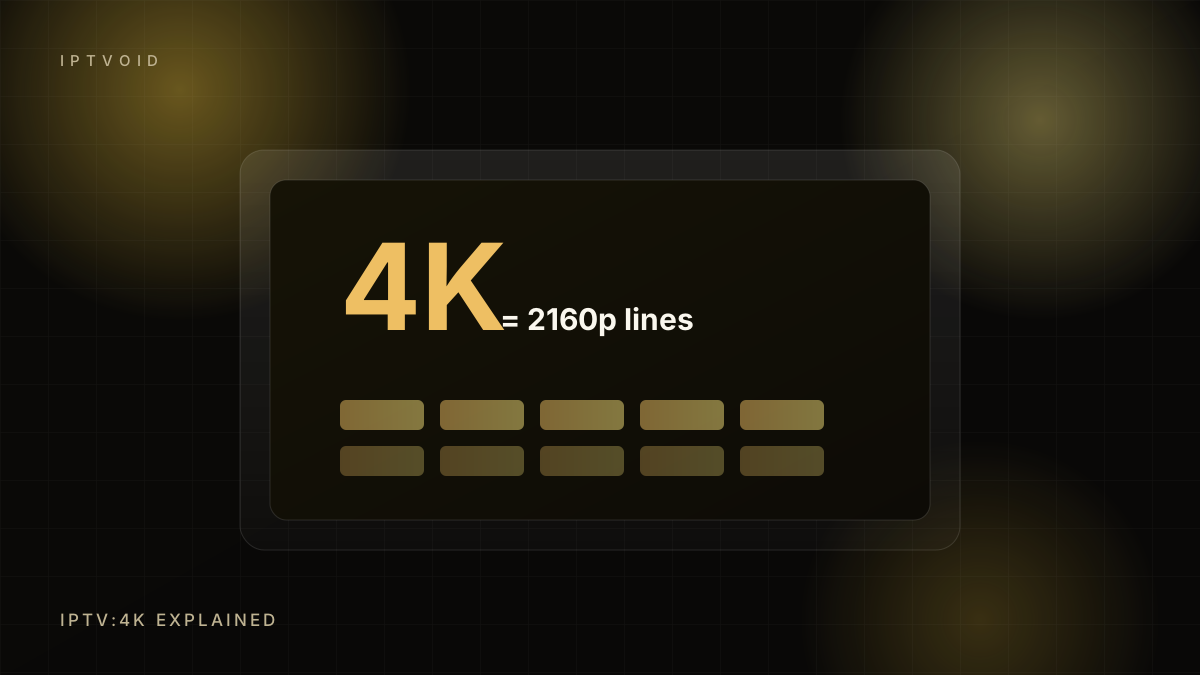
In short: what 4K IPTV really needs
A 4K IPTV channel needs roughly 15–25 Mbps of stable bandwidth and a 4K-capable device, player and TV. Resolution alone does not guarantee quality: bitrate, codec and source matter more. Many “4K” labels are upscaled HD. Check the stream’s actual resolution and test fast-motion content before paying. 4K IPTV is not a single switch. 4K IPTV needs a 4K source, a decoder that supports HEVC, enough bandwidth and a player that can output 2160p. This guide separates real 4K from upscaled channels.
Resolution is only one number
A 4K stream has 3840 × 2160 pixels, four times the pixels of 1080p. That sounds like a simple upgrade, but picture quality depends on four things:
- The source resolution
- The bitrate the stream is encoded at
- The codec and encoder settings
- Your device's ability to decode and display it
A low-bitrate 4K stream can look worse than a well-encoded 1080p stream, especially in fast motion. Resolution is the container, not the quality.
What bandwidth do you need?
| Quality | Typical bitrate | Practical download speed |
|---|---|---|
| SD | 2–4 Mbps | 5 Mbps |
| HD 720p | 4–8 Mbps | 10 Mbps |
| HD 1080p | 6–12 Mbps | 15 Mbps |
| 4K | 15–25 Mbps | 30 Mbps |
| 4K HDR, high bitrate | 25–40 Mbps | 50 Mbps |
These are rules of thumb. Stability matters as much as headline speed. A 100 Mbps connection that drops packets will buffer more than a stable 40 Mbps line.
Use Ethernet where possible. If you must use Wi-Fi, prefer 5 GHz or Wi-Fi 6 and keep the device in line of sight of the router.
HDR is a separate feature
4K and HDR are often marketed together, but they are different. 4K is resolution. HDR (HDR10, HLG, Dolby Vision) is dynamic range and colour. A 4K stream without HDR can still look excellent. An HDR stream on a TV that does not support the format may look washed out or trigger a compatibility message.
Check all three: the stream, the player and the TV. If any one of them does not support the HDR format, you will not get the intended picture.
Why sports expose bad streams
Static studio shots compress well. Fast motion does not. During a live match, the encoder has to decide what to discard, and low-bitrate streams show it as:
- Blurry players when the camera pans
- Blocky artefacts around the ball
- Smearing in crowd shots
- Audio drift after a long session
If a provider's 4K sports feed looks worse than its HD feed, the 4K label is not telling you the whole story.
Upscaled HD is common
Many channels labelled 4K are actually 1080p feeds upscaled by the provider or by the TV. Upscaling can look smoother, but it cannot add detail that was never captured.
How to check:
- Open the player's stream information panel, if it has one.
- Compare the same event on the HD and 4K feeds.
- Look at fine text, such as a scoreboard or a news ticker.
- Watch fast motion, not a static shot.
If the 4K feed and the HD feed look identical in fine detail, you are probably watching an upscale.
Device checklist
For a genuine 4K experience you need:
- A 4K TV with the right HDMI standard
- A 4K-capable streaming device (Fire TV Stick 4K or 4K Max, Android TV box, Apple TV 4K)
- A player that supports 4K decoding
- A certified HDMI cable
- A stable 25 Mbps+ connection
- A 4K feed from the provider
Miss one and the chain falls back to HD. That is not a fault; it is how the pipeline works.
Codecs and compatibility
Most live streams use H.264 or H.265 (HEVC). H.265 gives better quality at the same bitrate but needs more decoding power. Older devices may struggle or refuse H.265 entirely.
If a 4K channel shows audio but no video, or stutters while the device runs hot, codec support is a likely cause. Try the HD feed and check the device's specifications.
A realistic test
- Pick a 4K channel with fast motion.
- Watch for ten minutes at peak time.
- Open the stream info and note resolution and bitrate.
- Switch to the HD feed and compare fine detail.
- Check the device temperature and whether the interface slows down.
If the 4K feed holds for ten minutes without buffering and shows visibly more detail, it is real enough to matter. If not, do not pay a premium for the label.
Do you need 4K?
For a 55-inch TV viewed from three metres, 4K is a noticeable upgrade. For a 32-inch TV in a kitchen, it is not. For a phone, it is mostly irrelevant.
Spend the money on a stable connection and a capable device before spending it on a 4K plan. A reliable HD stream is a better experience than a broken 4K one.
What to ask a provider
- Which channels are native 4K, not upscaled?
- What bitrate do the 4K feeds use?
- Which codec is used?
- Is HDR supported, and in which format?
- What happens if my device cannot decode the feed?
A provider that cannot answer these questions is selling a label, not a quality tier.
Frequently asked questions
How much internet speed do I need for 4K IPTV?
Plan for 30 Mbps of stable download speed, with 50 Mbps if you want headroom for other devices. The stream itself may use 15–25 Mbps. Stability and low packet loss matter more than the headline speed on your plan.
Is 4K IPTV better than 1080p?
Only when the source, bitrate and device support it. A high-bitrate 1080p stream can look better than a low-bitrate 4K stream, especially in fast sport. Compare fine detail and motion, not the channel label.
Why does my 4K channel look blurry?
The feed may be upscaled HD, the bitrate may be low, or your device may be dropping quality because of Wi-Fi. Check the stream information panel, test Ethernet and compare the same event on the HD feed.
Keep reading
IPTV on a Fire TV Stick: the setup that works
A practical Fire TV Stick IPTV setup guide: choosing a stick, installing a player, entering your login, loading the EPG and fixing buffering.
IPTV on Samsung and LG smart TVs: your options
Why TiviMate and IPTV Smarters are not native on Samsung Tizen or LG webOS, the smart TV apps that do work, and when a streaming stick is better.
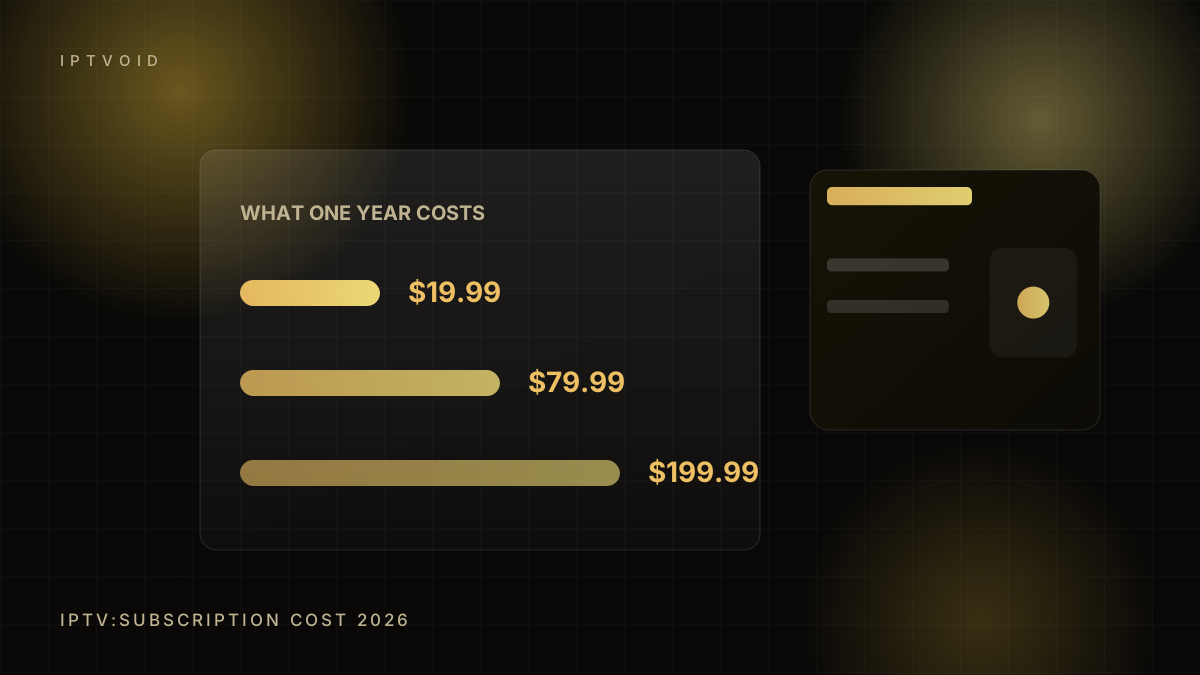
What an IPTV subscription actually costs in 2026
A clear breakdown of IPTV subscription pricing in 2026: monthly vs long-term plans, device counts, hidden costs and how to compare quotes.
Next step
Put the advice into practice
Start with a free trial, test at peak time, then choose the device count and term that fit your household.