Setup
IPTV on Samsung and LG smart TVs: your options
IPTV on Samsung and LG smart TVs: which players exist in each store, when to use a stick or box instead, and how to test the setup before you pay.
In short: IPTV on a smart TV
Samsung Tizen and LG webOS do not run TiviMate or IPTV Smarters Pro natively. Smart TV owners can use a compatible TV app that accepts an M3U playlist, or connect a Fire TV Stick or Android box. A stick is usually faster and supports more players. Check the app’s current availability and fees before paying. Samsung and LG smart TVs can run IPTV, but the app store decides which player you get. This guide covers the smart TV options, when a stick is the better answer, and how to test the setup before you pay.
The short answer
Samsung and LG smart TVs are excellent displays, but their app stores are not built for IPTV players. TiviMate is Android TV only. IPTV Smarters Pro is available on Android, iOS, Windows and macOS, but not as a native Samsung Tizen or LG webOS app.
You have two practical routes:
- Use a smart TV app that accepts an M3U playlist.
- Connect a Fire TV Stick, Android TV box or similar device and use a full player.
Neither route is wrong. They trade convenience against performance and app choice.
Why the popular players are missing
TiviMate is built for Android TV and Google TV. It relies on Android TV APIs for playback, recording and the programme guide. Samsung's Tizen and LG's webOS are different operating systems with different app stores and different video pipelines.
IPTV Smarters Pro covers more platforms than most players, but it still does not ship a native Tizen or webOS build. Anyone who says otherwise is usually describing a sideloaded workaround or a different app with a similar name.
Route 1: a smart TV app
Several apps in the Samsung and LG stores accept an M3U URL or a provider login. The best known is Smart IPTV, which has been available on both platforms for years. Set IPTV and similar apps also exist, and availability varies by region and by TV model year.
Typical flow:
- Install the app from the TV's own app store.
- Open it and note the MAC address or device ID it displays.
- Register that ID on the app developer's website.
- Upload or paste the M3U playlist from your provider.
- Restart the app and wait for the channel list to load.
Things to check before paying for a TV app:
- Is it available in your country and on your TV model?
- Is there a one-time activation fee or a subscription?
- Does it support the EPG format your provider supplies?
- Does it support catch-up?
- How many devices can one licence cover?
These apps are usually lighter than a full Android player. That is an advantage on older TVs and a limitation if you want recording, multi-view or advanced guide features.
Route 2: a streaming stick or box
This is the more flexible option. A Fire TV Stick 4K Max, an Android TV box or a Google TV device plugs into an HDMI port and runs the full player ecosystem.
Advantages:
- TiviMate, IPTV Smarters Pro and other mature players
- Faster interface on older TVs
- Recording and catch-up features where the player supports them
- Easy replacement if the hardware ages
- The TV stays a display, so you are not dependent on its app store
Disadvantages:
- One more remote and one more power cable
- Extra cost
- Another device to keep updated
If your TV is more than a few years old, a stick often feels faster than the TV's built-in apps, not just for IPTV.
Comparison
| Factor | Smart TV app | Streaming stick |
|---|---|---|
| Setup effort | Low | Medium |
| App choice | Limited | Wide |
| Performance on older TVs | Can be slow | Usually faster |
| Recording | Rare | Player-dependent |
| Catch-up | App-dependent | Player-dependent |
| Cost | App fee, if any | Hardware cost |
| Upgrades | Replace the TV | Replace the stick |
What about casting from a phone?
Casting works for on-demand video, but it is a poor fit for live TV. The phone becomes a remote and a battery drain, and some players block casting. A native app or a stick is a better living-room experience.
Matching the TV to the service
Before you buy a plan, confirm three things:
- The TV or stick can install a compatible player.
- Your provider supports the login type the player accepts.
- Your network is stable at the TV's location.
The third point is the one people skip. A TV on the far side of the house may have a weak Wi-Fi signal even when the phone in the same room seems fine. Test with the TV's own connection.
A note on "loaded" TVs and sticks
Some sellers offer a TV or stick that is "fully loaded" with channels. That is a different product from a subscription, and it often involves unlicensed content or modified software. It also removes your control over the login and the updates. Buy the hardware separately and keep the subscription in your own name.
Which route should you choose?
Choose the smart TV app if:
- Your TV is recent and responsive
- You only need live TV and a basic guide
- You want the fewest devices and remotes
Choose a streaming stick if:
- You want TiviMate or a full-featured player
- Your TV's app store is missing the app you need
- You want recording, catch-up or multi-view
- Your TV feels slow
Either way, test with a trial before committing to a long plan. The device is only half the setup; the login and the network are the other half.
Frequently asked questions
Can I install TiviMate on a Samsung TV?
No. TiviMate is built for Android TV and Google TV and is not available as a native Samsung Tizen app. Use a compatible smart TV app that accepts an M3U playlist, or connect a Fire TV Stick or Android TV device.
Does IPTV Smarters Pro work on LG webOS?
Not as a native LG webOS app. IPTV Smarters Pro supports Android, iOS, Windows and macOS. LG TV owners can use a webOS app that accepts an M3U playlist or connect a streaming device.
Is a Fire TV Stick better than a smart TV app for IPTV?
Usually, yes, for performance and app choice. A stick runs mature players such as TiviMate and Smarters, and it can be replaced cheaply. A smart TV app is simpler and needs no extra hardware, but it is more limited.
Keep reading
IPTV on a Fire TV Stick: the setup that works
A practical Fire TV Stick IPTV setup guide: choosing a stick, installing a player, entering your login, loading the EPG and fixing buffering.
4K IPTV: what 4K actually means for live TV
What 4K means for IPTV in practice: resolution vs bitrate, HDR, bandwidth needs, upscaling, sports artefacts and how to verify a real 4K stream.
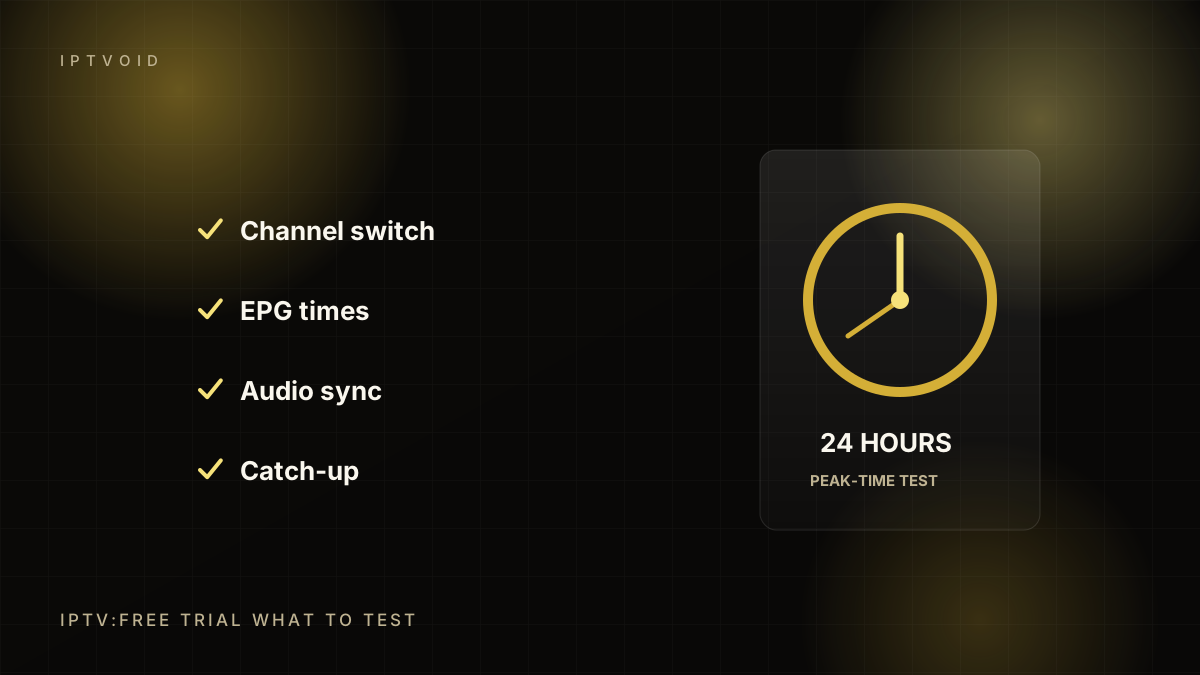
IPTV free trial: what to test in 24 hours
How to use an IPTV free trial properly: peak-time tests, channel zapping, EPG, catch-up, 4K, multi-device checks and the questions to ask support.
Next step
Put the advice into practice
Start with a free trial, test at peak time, then choose the device count and term that fit your household.