Android TV
IPTV on Android TV: setup for Google TV
Set up IPTV on Android TV or Google TV: install a player, add an Xtream Codes login, load the EPG, build favourites and test playback at peak time.
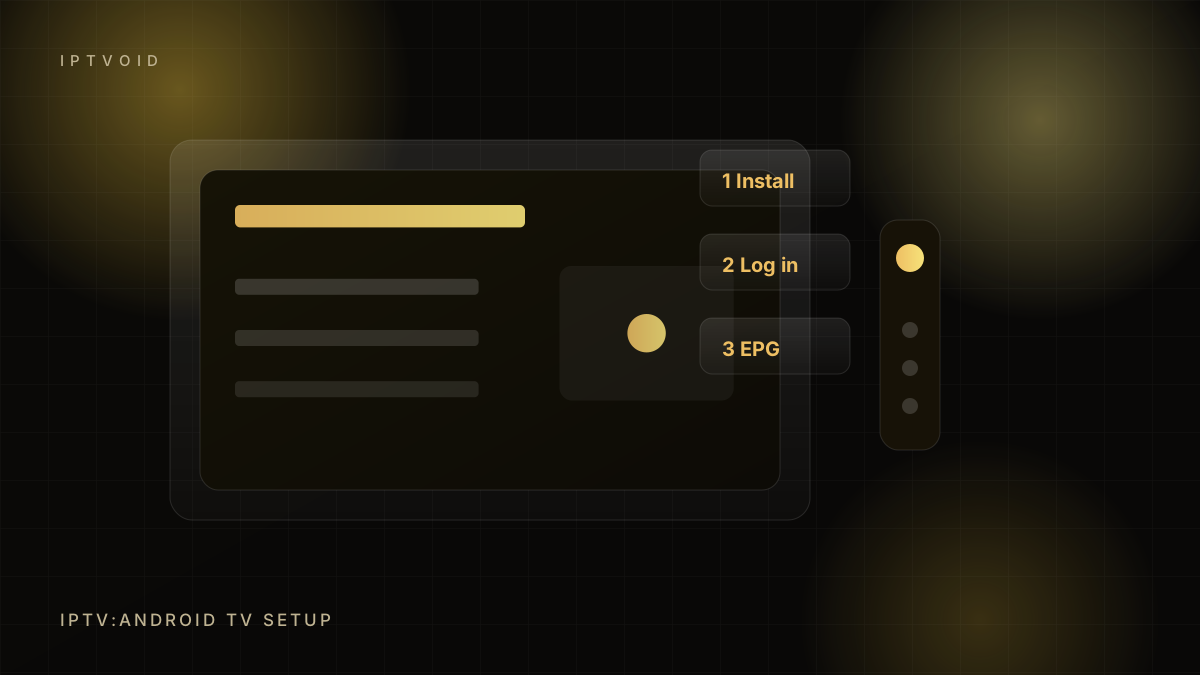
In short: IPTV on Android TV
Install a compatible IPTV player from the Google Play Store, open it, choose Xtream Codes or M3U, enter the provider details, then load the EPG. On Android TV and Google TV, use a player such as TiviMate or IPTV Smarters Pro, set favourites, and test at peak time before buying a long plan. Android TV and Google TV run the same player apps as a phone, with a remote instead of a touchscreen. This guide covers the install, the login, the EPG and the settings that keep Android TV playback stable.
What you need
- An Android TV or Google TV device (TV, box or stick)
- A stable internet connection
- Your IPTV login details from the provider
- A player app
The two most common players are TiviMate (Android TV focused) and IPTV Smarters Pro (cross-platform). Both accept Xtream Codes logins and M3U playlists.
Step 1: install the player
Open the Google Play Store on the TV, search for the player and install it. If the app is not available in your region, use the developer's official site. Do not install modified APKs from random download pages.
After installation, open the app once and accept the network permission. A player does not need access to your contacts, microphone or location.
Step 2: choose the login type
Your provider will supply one of these:
- Xtream Codes — server URL, username and password
- M3U URL — one long playlist address
- M3U file — a downloaded file, less common on TV
Open the player's add-account screen and pick the matching option. If you are unsure, ask support which one your plan uses.
Step 3: enter the details
Type the details manually if the remote allows it. Pasting from a phone is faster but can carry hidden spaces.
Check for:
- A trailing space after the username
- The correct protocol (http or https)
- The port number, if the server URL includes one
- Upper and lower case in the password
Save the account and let the player load the channel list. A large list can take a minute on first load.
Step 4: load the EPG
With Xtream Codes, the guide often loads automatically. If it does not:
- Open Settings, then Playlists or Accounts.
- Select your playlist.
- Find the EPG or XMLTV field.
- Enter the guide URL from your provider, or confirm the automatic source.
- Set the timezone.
- Force a refresh.
Give it a few minutes. A guide that stays empty is usually a configuration issue.
Step 5: organise the guide
A raw list of thousands of channels is hard to use. Spend ten minutes on:
- Hiding groups you never watch
- Adding your main channels to favourites
- Reordering favourites
- Setting a default group
On TiviMate, long-press a channel to add it to favourites. On Smarters, use the star icon. The exact gesture varies, but the principle is the same.
Step 6: test
Watch your main channel for 30 minutes at peak time. Switch between ten channels. Check the guide and catch-up if your plan includes it.
If you are on a trial, do this before paying for a longer term.
Common problems
| Problem | Likely cause | Fix |
|---|---|---|
| Login rejected | Typo, trailing space, wrong URL | Re-enter manually |
| Empty channel list | Account not saved or expired | Recheck status with support |
| EPG empty | Wrong guide URL or timezone | Set source and refresh |
| Buffering | Wi-Fi, device load, provider | Try Ethernet, close apps, retest |
| Audio out of sync | Player or TV setting | Change audio delay or player |
| App crashes on start | Outdated app or low storage | Update, clear cache, reinstall |
Android TV tips
- Use a wired connection if the TV has an Ethernet port.
- Disable background app updates during peak viewing.
- Clear the player cache if the guide becomes slow.
- Keep the player updated, but avoid beta builds on a main TV.
- Use the TV's game mode only if it does not worsen picture processing.
When to ask support
Contact support if the login is rejected after manual re-entry, if the channel list loads but playback fails on every channel, or if the guide stays empty after a correct URL and refresh. Include a screenshot and the exact error text.
Frequently asked questions
Which IPTV player is best for Android TV?
TiviMate is the most feature-complete for Android TV, with a strong guide, recording and multi-view on its premium tier. IPTV Smarters Pro is a good free alternative with broad device support. Both work with Xtream Codes and M3U logins.
Why is my IPTV login rejected on Android TV?
The most common causes are a trailing space, a wrong server URL, a missing port or a mistyped password. Re-enter the details manually instead of pasting, then restart the app. If it still fails, ask your provider to confirm the account status.
Can I use an M3U playlist on Android TV?
Yes. Most Android TV players accept an M3U URL as well as Xtream Codes. Paste the full URL exactly as supplied, including any token or password in the address, and allow time for a large playlist to load.
Keep reading
IPTV on a Fire TV Stick: the setup that works
A practical Fire TV Stick IPTV setup guide: choosing a stick, installing a player, entering your login, loading the EPG and fixing buffering.
IPTV on Samsung and LG smart TVs: your options
Why TiviMate and IPTV Smarters are not native on Samsung Tizen or LG webOS, the smart TV apps that do work, and when a streaming stick is better.
How to fix IPTV buffering: 12 checks in order
A systematic IPTV buffering fix: speed, packet loss, Wi-Fi, Ethernet, device load, player cache, stream quality, DNS and provider checks.
Next step
Ready to set it up?
Start with a free trial, test at peak time, then choose the device count and term that fit your household.